 MapleStory MGLB
02 Options Menu / Customer Service

Summary
“02 Options Menu / Customer Service” is an official guide from MapleStory M Official News on 2023-02-10. Its canonical Nexon thread and publication metadata are retained for source-backed verification.
Article body
01. Options Guide
- In [Options], you can set up your preferences for Game, Community, Graphics, Effect, Sound, Push Notifications, and Account.
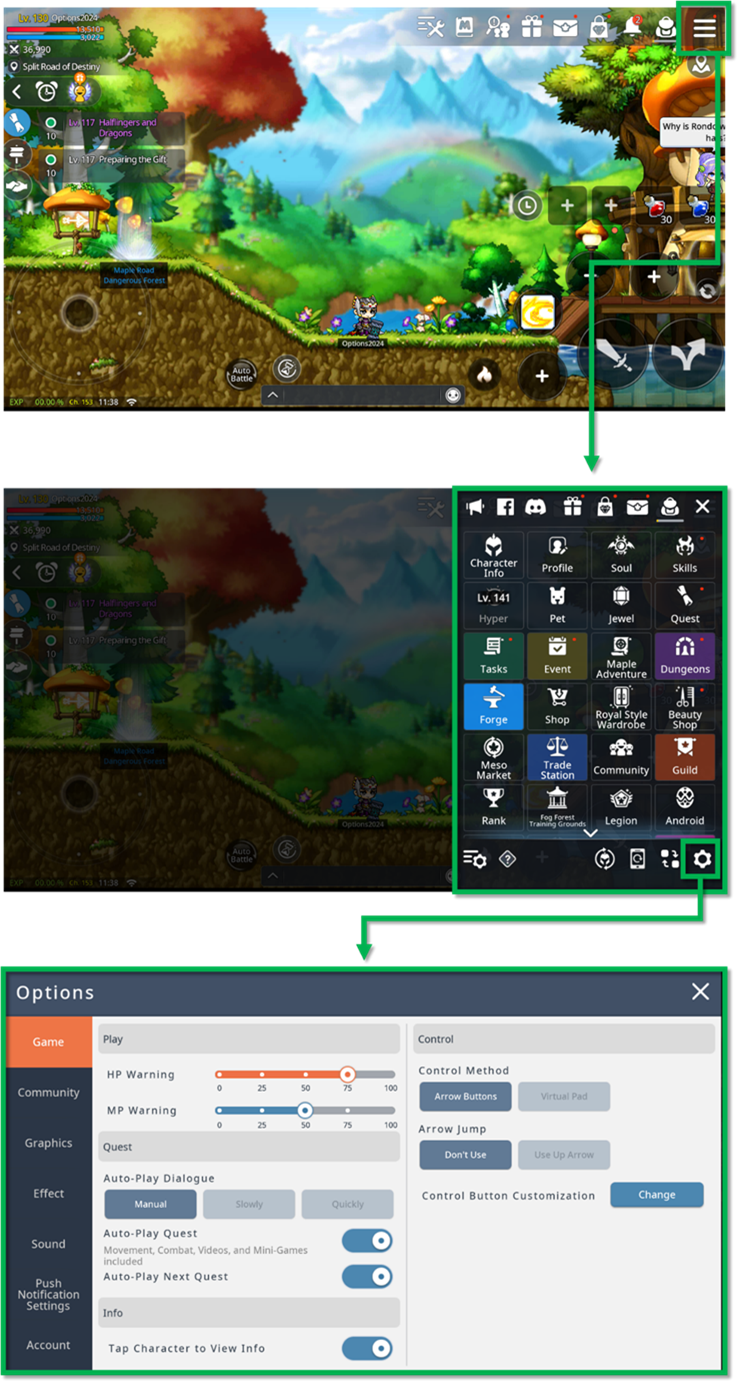
02. Game Settings Options
- In [Options] – [Game], you can select the HP, MP Warning, Quest, Info and Control settings.
- Changeable options are as follows.
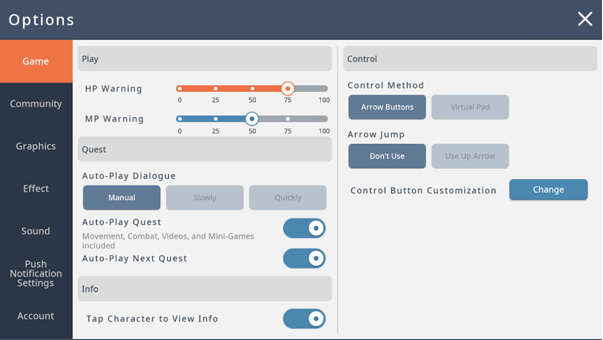
| Setting Type | Description |
| HP/MP Warning | Choose when to receive warning signs depending on the HP/MP status |
| Auto-Play Dialogue | Choose whether to auto-play quest dialogues manually or slowly/quickly |
| Auto-Play Quest | Choose whether quests including movement, combat, videos and mini-games are auto-played |
| Auto-Play Next Quest | Choose whether to auto-play the next quest after completing the current quest |
| Auto View Battle Analysis Results | Choose whether to auto view battle analysis results for Commander, Expedition and Fog Forest Training Grounds |
| Control Method | Choose whether to use Arrow Buttons or a Virtual Pad |
| Control Button Customization | Customize control buttons’ size, location and direction |
| Arrow Key Jump | Choose whether to use the arrow keys to jump |
| Tap Character to View Info | Choose whether to view a character’s info by tapping on a character |
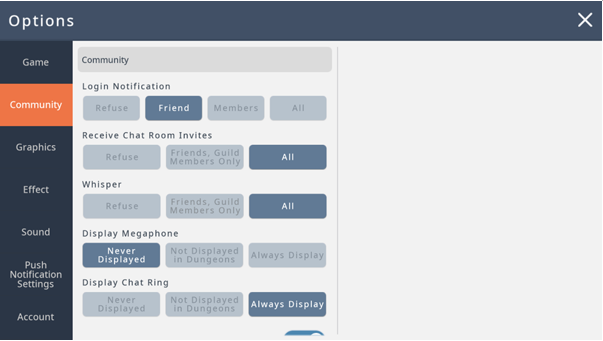
03. Community Options
- In [Options] – [Community], you can set community invites and alerts like invites.
04. Graphic Options
- In [Options] – [Graphics], you can change the Resolution and Camera options.
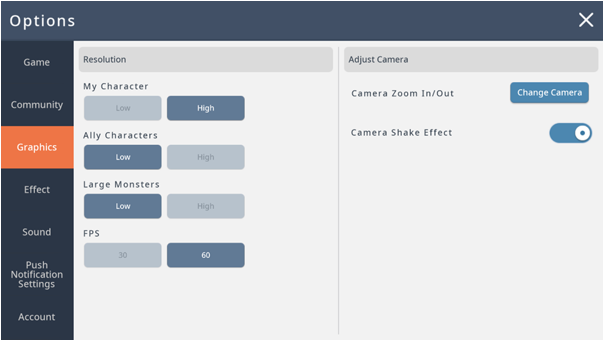
| Setting Type | Description |
| My Character Resolution | Choose my character’s resolution |
| Ally Character Resolution | Choose ally character’s resolution |
| Large Monster Resolution | Choose large monsters’ resolution |
| Frame Resolution | Choose the frame |
| Camera Zoom In/Out | Choose the camera zoom settings |
| Camera Shake Effect | Choose to see the camera shake effect |
04. Effect Options
- In [Options] – [Effect], you can adjust the skill effect transparency, silhouette, damage effects and more.
- You can preview the adjusted settings on this tab.
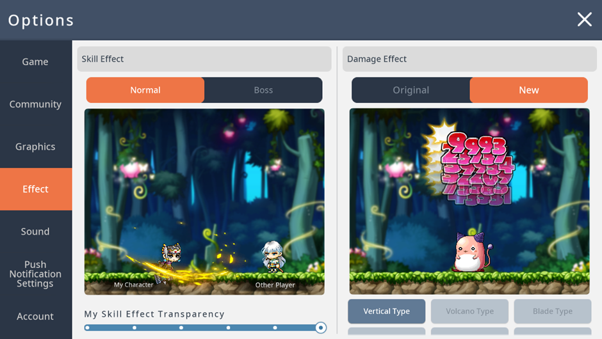
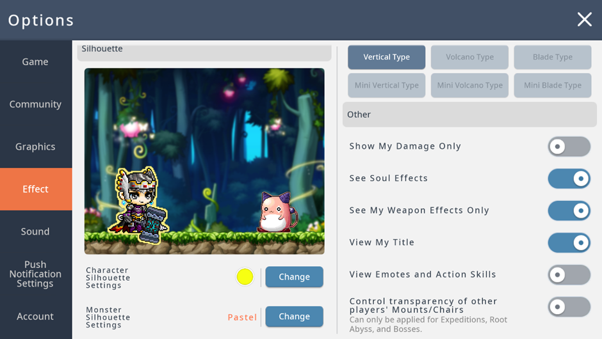
| Setting Type | Description |
| My Skill Effect Transparency | Choose my skills effects’ transparency |
| Other Players’ Skill Effect Transparency | Choose other players’ skill effect transparency |
| DMG Effect | Choose how to display the DMG effect *Original: Maple PC’s DMG effect display type *New: MapleStory M’s DMG effect display type |
| Show My Damage Only | Choose to see my damage only |
| See Soul Effects | Choose to see my soul effects |
| See My Weapon Effects Only | Choose to see my wepon effects only |
| View Title/Medal | Choose to see my Title/Medal |
| View Emotes | Choose to see the emotes in the chats |
| Control Transparency of other players’ Mount/Chairs | Choose to control other players’ Mount/Chairs effect * Can only be applied for Expeditions, Root Abyss, Commanders |
| Monster Silhouette Settings | Choose to see the monsters’ silhouette behind any skill effects |
| Character Silhouette Settings | Choose to see the characters’ silhouette behind any skill effects |
06. Sound Options
- In [Options] – [Device], you can adjust the sound from various gameplay.
- Each sound type can be adjusted to 0%, 25%, 50%, 75% or 100%.
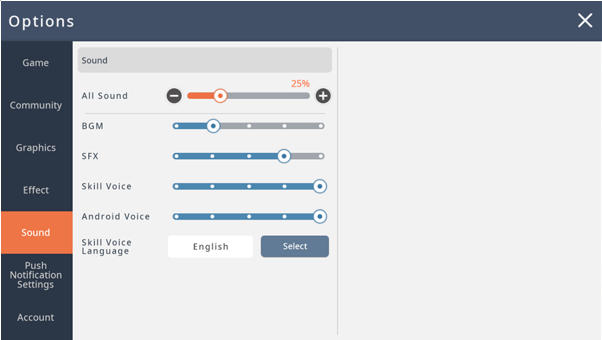
| Setting Type | Description |
| BGM | Sound for in-game maps’ BGM |
| SFX | Sound for UI adjustments and skill sound effects |
| Skill Voice | Sound for skill voice when skills are cast |
| Android Voice | Sound for equipping androids and for androids’ voice |
07. Push Notification Settings
- In [Options] – [Push Notification Settings], you can enable push notifications for the game.
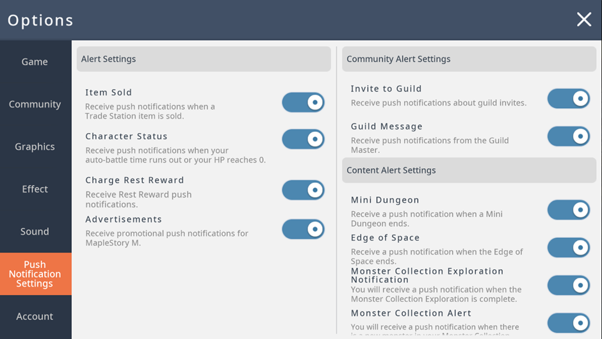
| Setting Type | Description |
| Sell Item | Receive push notifications when a Trade Station item is sold |
| Character Status | Receive push notifications when your auto-battle time runs out or your HP reaches 0 |
| Charge Rest Reward | Receive rest reward push notifications |
| Advertisement | Receive promotional push notifications for MapleStory M |
| Invite to Guild | Receive push notifications about guild invites |
| Guild Message | Receive push notifications from the Guild Master |
| Mini Dungeon | Receive push notifications when a Mini Dungeon ends |
| The Edge of Space | Receive push notifications when the Edge of Space ends |
| Monster Collection Exploration Notification | Receive push notifications when Monster Collection Exploration has been completed |
| Monster Collection Alert | Receive push notifications when a new Monster Collection has been added |
08. Account Options
- In [Options] – [Account], you can check your Member Code, select language, enter coupon, link accounts etc.
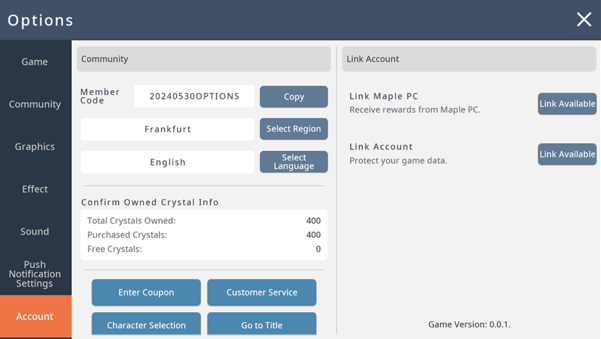
| Setting Type | Description |
| Member Code | You can check your MapleStory M Member Code * Select ‘Copy’ to copy and paste it elsewhere if needed |
| Select Region | You can select regions |
| Select Language | You can select languages |
| Owned Crystal Info | Shows total crystals owned |
| Enter Coupon | A pop-up will display to redeem rewards from the coupon |
| Customer Service | Announcements and other notices can be viewed, as well as a 1:1 customer center |
| Go to Lobby | Select to go to the lobby |
| Go to Title | Select to go to the main title page |
| Link Maple PC | You can link your Maple PC account |
| Link Account | You can link your mobile guest account |
|
Customer Service |
- Select from [Options] – [Account] to view Notice, Customer Center, FAQ, Terms, Account Link Status and notifications.
▶ Notice
You can check MapleStoryM’s notices and announcements.
▶ Terms
You can check Nexon Mobile services’ terms of service, end user license agreement, privacy policy, information usage policy, etc.
▶ Account Link Status
You can check the current character’s linked account information.
▶ Notifications
You can select whether to receive advertisement push notifications.
▶ Customer Center
You can report an issue through the customer center. (Please check the FAQ before!)
More from this series
This Guides entry belongs to MapleStory M. Related pages below keep this series separate from other MapleStory games.
Source and verification
MPStorys shows the readable on-site body above. The source page remains attached only as a citation and update trail.
MapleStory M Official News