
摘要
“02 Options Menu / Customer Service” is an official guide from MapleStory M Official News on 2023-02-10. Its canonical Nexon thread and publication metadata are retained for source-backed verification.
正文
01. Options Guide
- In [Options], you can set up your preferences for Game, Community, Graphics, Effect, Sound, Push Notifications, and Account.
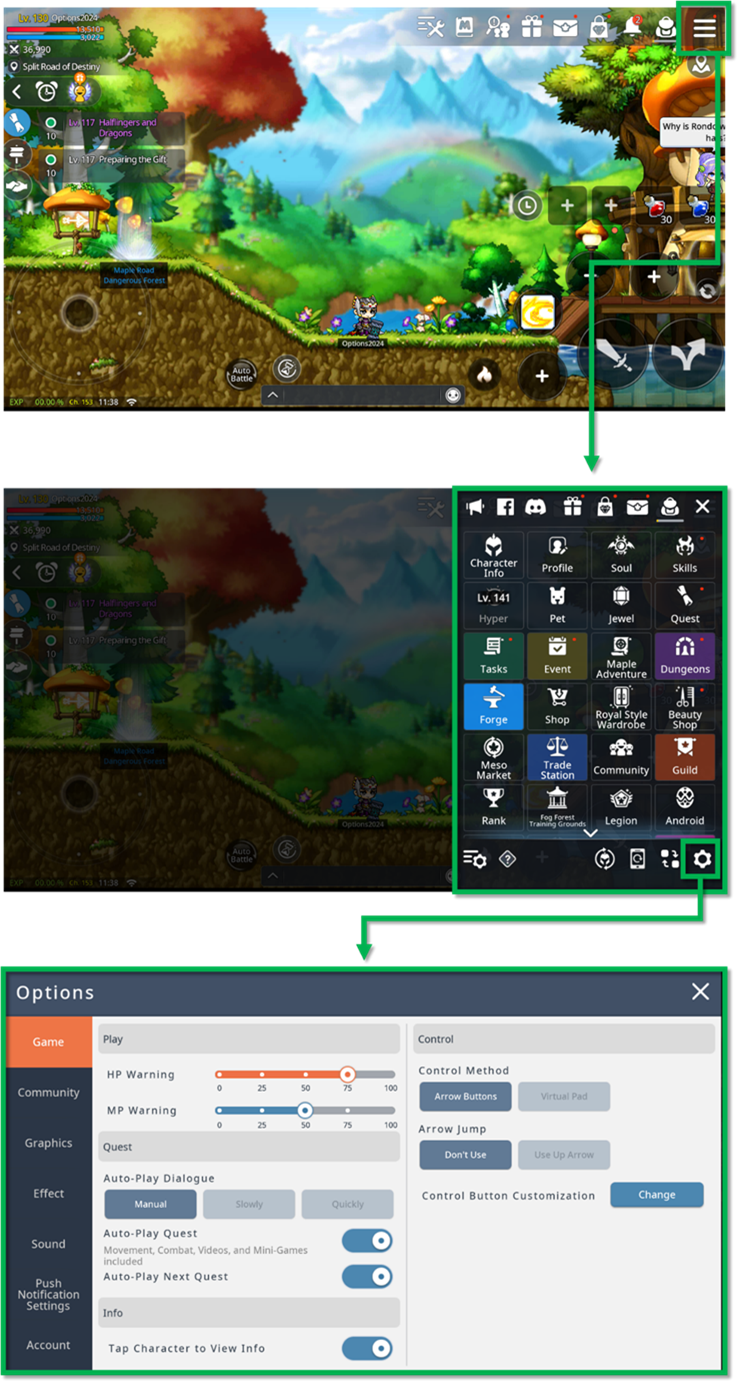
02. Game Settings Options
- In [Options] – [Game], you can select the HP, MP Warning, Quest, Info and Control settings.
- Changeable options are as follows.
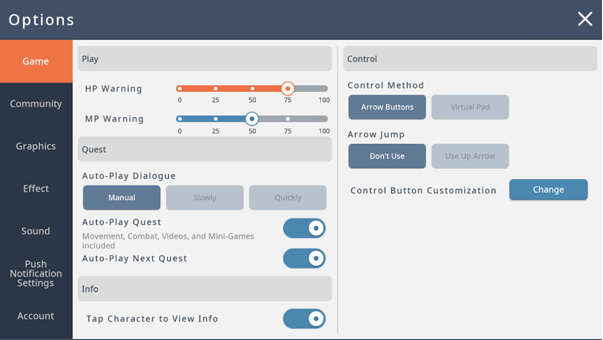
| Setting Type | Description |
| HP/MP Warning | Choose when to receive warning signs depending on the HP/MP status |
| Auto-Play Dialogue | Choose whether to auto-play quest dialogues manually or slowly/quickly |
| Auto-Play Quest | Choose whether quests including movement, combat, videos and mini-games are auto-played |
| Auto-Play Next Quest | Choose whether to auto-play the next quest after completing the current quest |
| Auto View Battle Analysis Results | Choose whether to auto view battle analysis results for Commander, Expedition and Fog Forest Training Grounds |
| Control Method | Choose whether to use Arrow Buttons or a Virtual Pad |
| Control Button Customization | Customize control buttons’ size, location and direction |
| Arrow Key Jump | Choose whether to use the arrow keys to jump |
| Tap Character to View Info | Choose whether to view a character’s info by tapping on a character |
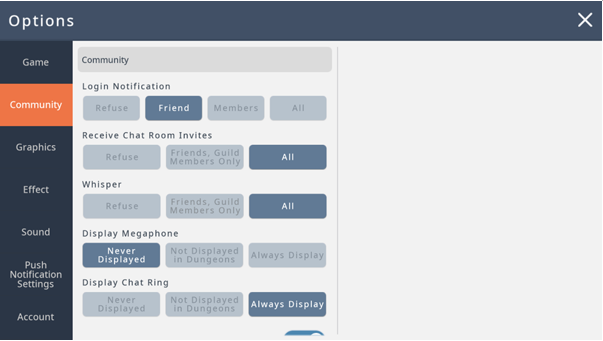
03. Community Options
- In [Options] – [Community], you can set community invites and alerts like invites.
04. Graphic Options
- In [Options] – [Graphics], you can change the Resolution and Camera options.
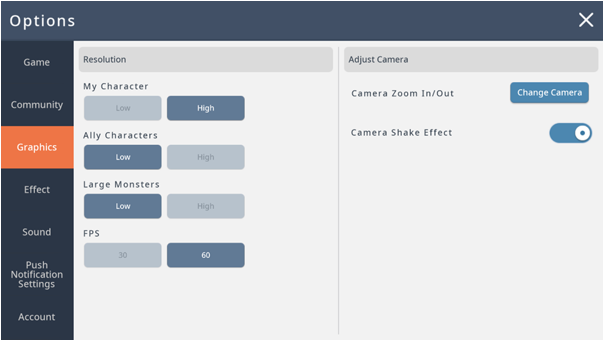
| Setting Type | Description |
| My Character Resolution | Choose my character’s resolution |
| Ally Character Resolution | Choose ally character’s resolution |
| Large Monster Resolution | Choose large monsters’ resolution |
| Frame Resolution | Choose the frame |
| Camera Zoom In/Out | Choose the camera zoom settings |
| Camera Shake Effect | Choose to see the camera shake effect |
04. Effect Options
- In [Options] – [Effect], you can adjust the skill effect transparency, silhouette, damage effects and more.
- You can preview the adjusted settings on this tab.
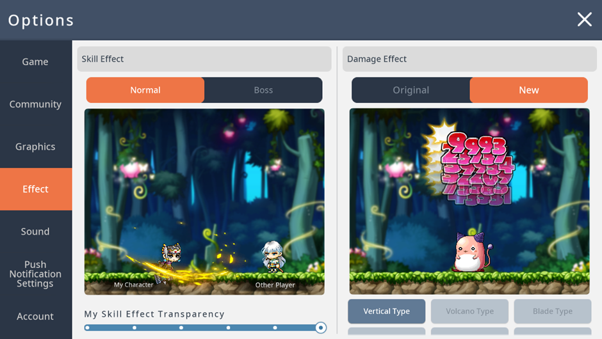
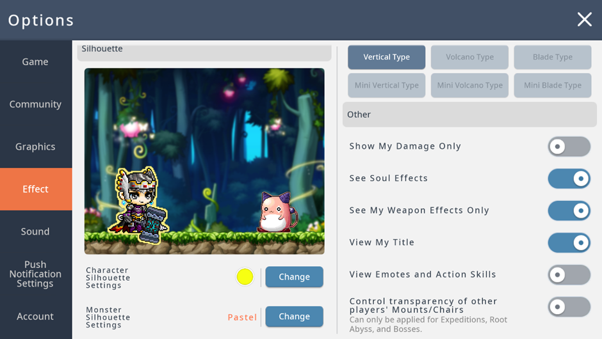
| Setting Type | Description |
| My Skill Effect Transparency | Choose my skills effects’ transparency |
| Other Players’ Skill Effect Transparency | Choose other players’ skill effect transparency |
| DMG Effect | Choose how to display the DMG effect *Original: Maple PC’s DMG effect display type *New: MapleStory M’s DMG effect display type |
| Show My Damage Only | Choose to see my damage only |
| See Soul Effects | Choose to see my soul effects |
| See My Weapon Effects Only | Choose to see my wepon effects only |
| View Title/Medal | Choose to see my Title/Medal |
| View Emotes | Choose to see the emotes in the chats |
| Control Transparency of other players’ Mount/Chairs | Choose to control other players’ Mount/Chairs effect * Can only be applied for Expeditions, Root Abyss, Commanders |
| Monster Silhouette Settings | Choose to see the monsters’ silhouette behind any skill effects |
| Character Silhouette Settings | Choose to see the characters’ silhouette behind any skill effects |
06. Sound Options
- In [Options] – [Device], you can adjust the sound from various gameplay.
- Each sound type can be adjusted to 0%, 25%, 50%, 75% or 100%.
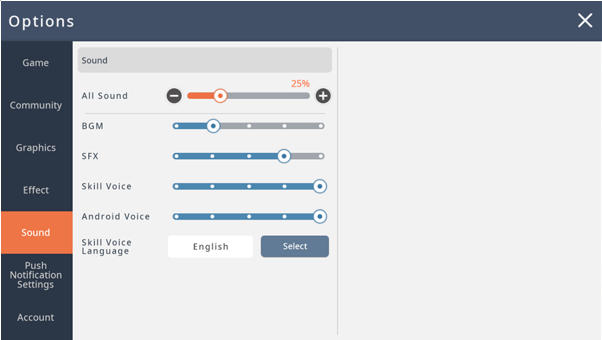
| Setting Type | Description |
| BGM | Sound for in-game maps’ BGM |
| SFX | Sound for UI adjustments and skill sound effects |
| Skill Voice | Sound for skill voice when skills are cast |
| Android Voice | Sound for equipping androids and for androids’ voice |
07. Push Notification Settings
- In [Options] – [Push Notification Settings], you can enable push notifications for the game.
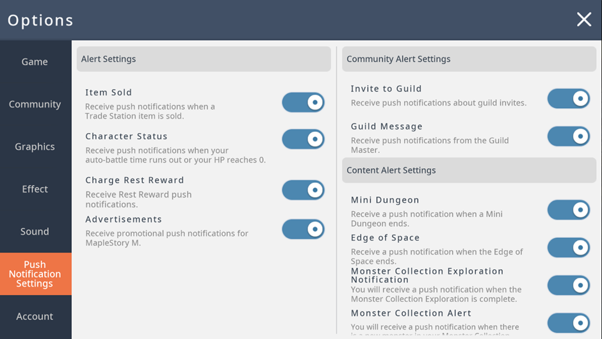
| Setting Type | Description |
| Sell Item | Receive push notifications when a Trade Station item is sold |
| Character Status | Receive push notifications when your auto-battle time runs out or your HP reaches 0 |
| Charge Rest Reward | Receive rest reward push notifications |
| Advertisement | Receive promotional push notifications for MapleStory M |
| Invite to Guild | Receive push notifications about guild invites |
| Guild Message | Receive push notifications from the Guild Master |
| Mini Dungeon | Receive push notifications when a Mini Dungeon ends |
| The Edge of Space | Receive push notifications when the Edge of Space ends |
| Monster Collection Exploration Notification | Receive push notifications when Monster Collection Exploration has been completed |
| Monster Collection Alert | Receive push notifications when a new Monster Collection has been added |
08. Account Options
- In [Options] – [Account], you can check your Member Code, select language, enter coupon, link accounts etc.
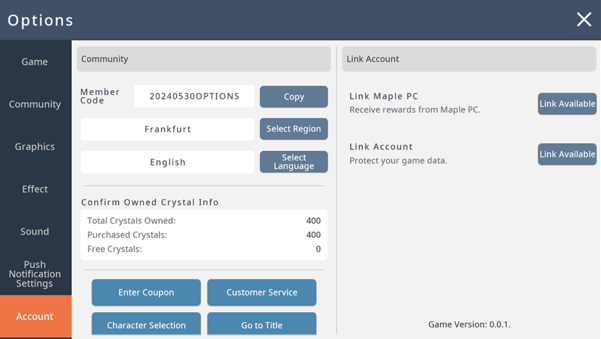
| Setting Type | Description |
| Member Code | You can check your MapleStory M Member Code * Select ‘Copy’ to copy and paste it elsewhere if needed |
| Select Region | You can select regions |
| Select Language | You can select languages |
| Owned Crystal Info | Shows total crystals owned |
| Enter Coupon | A pop-up will display to redeem rewards from the coupon |
| Customer Service | Announcements and other notices can be viewed, as well as a 1:1 customer center |
| Go to Lobby | Select to go to the lobby |
| Go to Title | Select to go to the main title page |
| Link Maple PC | You can link your Maple PC account |
| Link Account | You can link your mobile guest account |
|
Customer Service |
- Select from [Options] – [Account] to view Notice, Customer Center, FAQ, Terms, Account Link Status and notifications.
▶ Notice
You can check MapleStoryM’s notices and announcements.
▶ Terms
You can check Nexon Mobile services’ terms of service, end user license agreement, privacy policy, information usage policy, etc.
▶ Account Link Status
You can check the current character’s linked account information.
▶ Notifications
You can select whether to receive advertisement push notifications.
▶ Customer Center
You can report an issue through the customer center. (Please check the FAQ before!)
此系列的更多內容
這筆攻略內容僅屬於 MapleStory M。下方相關頁面也按此系列獨立整理,不會與其他 MapleStory 作品混用。
來源與核驗
上方已在本站顯示可閱讀正文;來源頁面只作為引用與後續更新核驗。
MapleStory M Official News