
Summary
“12 Beauty Shop” is an official guide from MapleStory M Official News on 2023-02-06. Its canonical Nexon thread and publication metadata are retained for source-backed verification.
Article body
|
Hair and Face |
01. Hair and Face Info
In the Hair menu, you can change your royal hair, your normal hair, and your hair color. In the Face menu, you can change your royal face, normal face, body, ears, and lenses.
02. How to Use Hair and Face
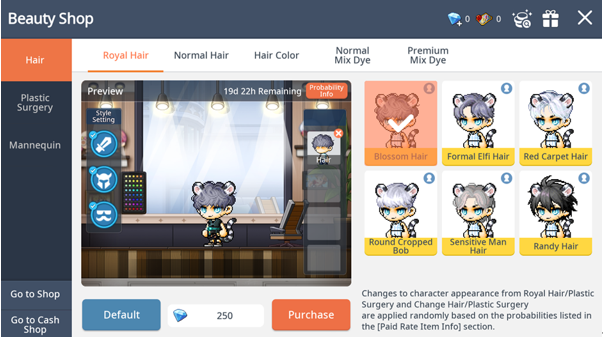
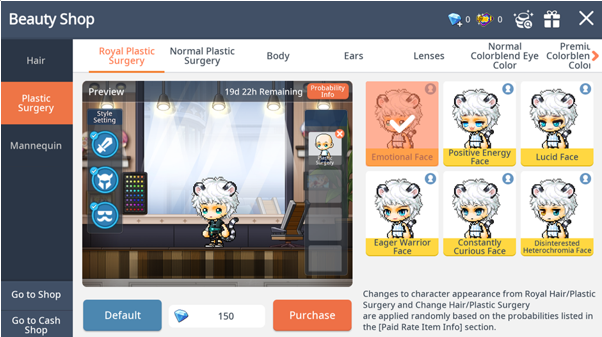
Tap Menu > Beauty Shop > Hair/Face to change your character's appearance.
▶ Hair
- In the Normal Hair menu, you can change your character's hair to a style of your choice.
- In the Royal Hair menu, you can change your character's hair based on the probabilities shown in the Royal Hair list.
- If you use Royal Hair when you've already equipped royal hair that you purchased, it will still change based on the probabilities shown in the Royal Hair list except for that hair.
- For example, if a character owns Hair A from the Royal Hair list, then using Royal Hair will change their hair to something other than Hair A, based on the probabilities shown in the Royal Hair list.
▶ Face
- In the Normal Face menu, you can change your character's face to a look of your choice.
- In the Royal Face menu, you can change your character's face based on the probabilities shown in the Royal Face list.
- If you use Royal Face when you've already equipped a royal face that you purchased, it will still change based on the probabilities shown in the Royal Face list except for that face.
- For example, if a character owns Face A from the Royal Face list, then using Royal Face will change their face to something other than Face A, based on the probabilities shown in the Royal Face list.
|
Hair, Face & Skin Mannequin |
01. Mannequin System Info
Mannequins are part of a system that saves your character's hair & hair color, face & lenses and skin or applies saved looks to your character.
02. How to Use the Mannequin System
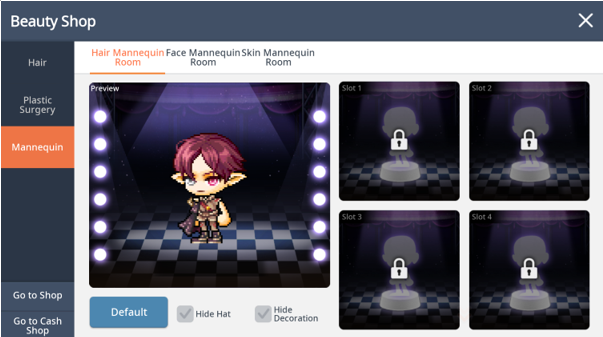
- Tap Menu > Beauty Shop > Mannequin to access the mannequin system for hair, face and skin, which you can use to save different versions of your character's appearance.
- Once you purchase a Hair, Face or Skin Mannequin, your character has unlimited access to this system.
- Each character can use three default mannequins and may register additional mannequins through Register Mannequin feature.
- You can add mannequins by spending Crystals or by using [Hair Mannequins], [Face Mannequins], and [Skin Mannequins]. Purchased mannequins can be used continuously without any time or usage limitations.
▶ Mannequin Room
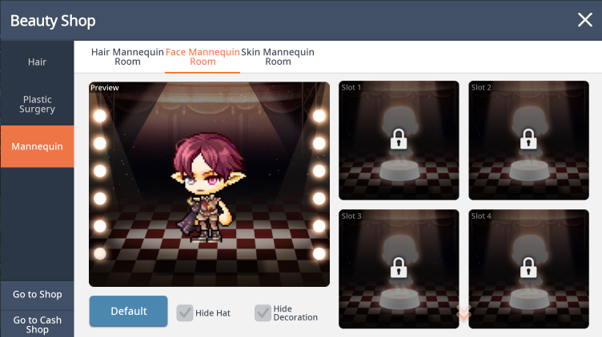

03. Mannequin System Features: Store, Change, Reset
You can store your character's hair, hair color, face, lenses and skin.
- In the Hair Mannequin menu, you can store your character's hair and hair color on the mannequin you choose.
- In the Face Mannequin menu, you can store your character's face on the mannequin you choose.
- In the Skin Mannequin menu, you can store your character’s skin on the mannequin you choose.
- Once you've stored it, the mannequin will remember your character's appearance for you.
- Even if every aspect of your character's appearance is the same except for the color, you can still store it.
- To access the look you have stored, tap the Store button in the appropriate slot.
You can apply the appearance and color stored on the mannequin to your character.
- If the appearance stored on the mannequin is different from your current appearance, you can swap them.
- Tap the Store button in the appropriate slot to make changes.
▶ Example) Applying an Existing Appearance from a Mannequin

You can reset the appearance and color stored on the mannequin.
- If you stored an appearance on the mannequin and wish to remove it, you can reset it to its original empty state.
- To reset a mannequin, tap the X button in the appropriate slot.
- When you reset a mannequin, any hair, face, skin stored on it will disappear and cannot be restored.
▶ [Tip] Mannequins
- Mannequins are a character attribution system.
- Mannequin appearances can only be used on the character you used to store that appearance.
- When you reset a mannequin, any hair stored on it will disappear and cannot be restored.
|
Mix Dye and Colorblend Eye Color |
01. Mix Dye and Colorblend Eye Color Info
The Mix Dye and Colorblend Eye Color system changes a character's hair and lens colors by mixing any 2 of 8 colors at a set probability.
02. How to Use Mix Dye and Colorblend Eye Color
- Tap Menu > Beauty Shop > Hair/Face to access the Mix Dye and Colorblend Eye Color systems.
- Use Crystals or Coupons to make changes to your character with the Mix Dye and Colorblend Eye Color systems.
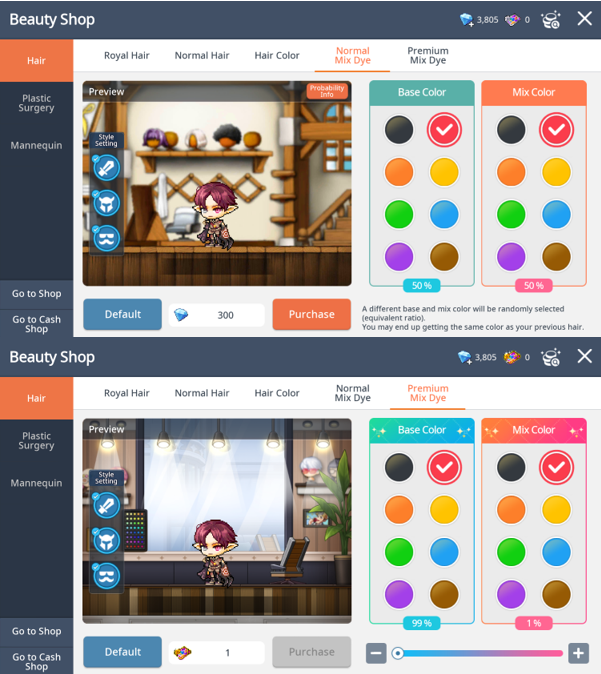
▶ Hair
- In the Mix Dye menu, 1 base color and 1 mix color will be selected at an equal probability, and the resulting hair color is a 50/50 mix of the two.
- In the Premium Mix Dye menu, you can not only choose 1 base color and 1 mix color, but you can also choose the ratios for each color.
- You need a Premium Mix Dye Coupon to use a Premium Mix Dye.
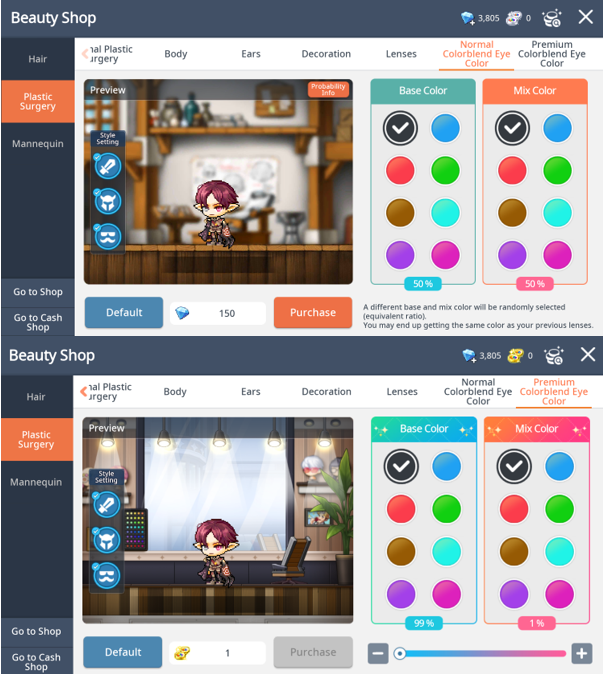
▶ Face
- In the Colorblend Eye Color menu, 1 base color and 1 mix color will be selected at an equal probability, and the resulting eye color is a 50/50 mix of the two.
- In the Premium Colorblend Eye Color menu, you can not only choose 1 base color and 1 mix color, but you can also choose the ratios for each color.
- You need a Premium Colorblend Eye Color Coupon to use a Premium Colorblend Eye Color.
▶ [Tip] Mix Dye and Colorblend Eye Color
- When you use a Mix Dye or Colorblend Eye Color, it is possible to get the same color that you currently have applied.
- When you use a Mix Dye or Colorblend Eye Color, you can't restore the color you had before. So be sure that's what you want!
- You can also use Mix Dye and Colorblend Eye Color for Androids.
|
Beauty Shop Preview |
There are preview slots on the right side of the Preview screen to allow you to see the products you’re trying to preview.
It supports the ability to preview the following beauty products with each other.
- Royal Hair / Normal Hair
- Royal Plastic Surgery / Normal Plastic Surgery
- Normal Dye / Mix Dye / Premium Mix Dye
- Body
- Ears
- Decoration
- Lenses / Normal Colorblend Eye Color / Premium Colorblend Eye Color
Angelic Buster's Dress-Up also supports the same feature.
Note)
Bulk purchase for products currently being previewed is not supported. When purchasing a currently applied beauty product from its relevant tab, only that product can be purchased.
More from this series
This Guides entry belongs to MapleStory M. Related pages below keep this series separate from other MapleStory games.
Source and verification
MPStorys shows the readable on-site body above. The source page remains attached only as a citation and update trail.
MapleStory M Official News