

Summary
“13 Friends and Parties” is an official guide from MapleStory M Official News on 2023-02-06. Its canonical Nexon thread and publication metadata are retained for source-backed verification.
Article body
|
Close Friend |
01. Friend Menu
Tap Community in the main menu.
- Nearby Players: You can view the names and levels of other players near your current location.
- Friend: You can view a friend's name, channel, location, and login date. Friend Warp is also available.
- Guild: You can view a guild member's name, level, and login date.
- Party: You can view a party member's name and your current party's level.
- Chat Room: You can view a list of chat rooms you are currently in and the info of other participating players.
02. Add a Friend
To add a player as a friend, just tap to view their info, then tap Invite Friend at the bottom.
- If that player accepts your friend request, you can view their channel and location by tapping Player List > Friends.
- If that player has Invite Friend turned off in the settings, you won't be able to send a friend invite.
* You can turn Invite Friend on and off in the Settings.
- To view a friend's info, tap the (i) button. (This is only available for friends who are online.)
03. Search for a Friend
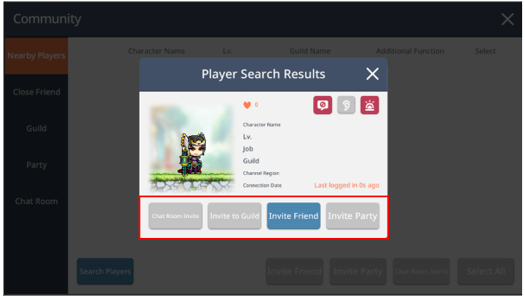
- Tap Community > Search Players to search for a friend.
- If the player you search for is logged in, the following will be available: Chat Room Invite, Invite to Guild, Invite Friend, and Invite Party.
04. Friend Warp
- You can use Friend Warp to teleport to your friend's location.
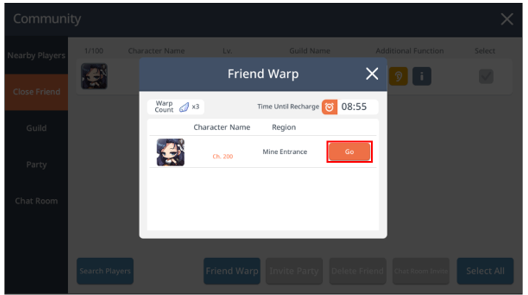
- Tap Community > Friend > Friend Warp.
- Then tap Go to teleport to your friend's location.
- You can only use Friend Warp 3 times per day.
- Remember, if your friend is playing special content, you won't be able to teleport to them.
|
Party |
01. Party Info
If your party plays in the same area, your EXP will be shared, and you can level up your character faster.
02. How to Create a Party
- To create a party, tap Quest > Party > Create.
- You can also join an existing party with Auto-Join.
- Parties must consist of 1–6 players.
- The maximum party size varies by field. (Min. 1 to Max. 6 players)
03. How to Use Party

04. Party Type Info
- Auto-Recruit Party: Recruit players who are looking for a party via Auto-Join.
- Permission Party: Only players approved by the Party Leader can join.
- Password Party: Only players who enter the password set by the Party Leader can join.
05. Appoint Party Leader (Party Leader's Authority)
- To appoint another party member as the Party Leader, go to Player List > Manage Party > Party and choose the party member. Then tap Appoint Party Leader.
- Party Leader authority will be assigned to that party member.
06. Kick Out a Party Member (Party Leader's Authority)
- If you are the Party Leader, you can kick out party members.
- Tap Player List > Manage Party > Kick from Party to kick out a party member.
07. Add a Party Member
- To add a friend to your party, tap Community > Friend, Guild, or Recent Party > Invite Party.
- Recent Party lists party members you played with in previous content.
- However, players who don't meet the level requirements for the content will be hidden.
08. Party Rest
- When you create a party, you can enable or disable Party Rest EXP.
- If Party Rest EXP is disabled, the party will not gain Party EXP if they haven't hunted for a certain period of time.
09. Resting Player Auto-Kick
- When you create a party, you can enable or disable Auto-Kick for resting party members.
- If Auto-Kick is enabled, party members will be automatically kicked if they haven't hunted for a certain period of time.
- If you join a party with Auto-Kick enabled and you take a break from hunting, you will receive a notification informing you that you must hunt monsters within a given time limit.

10. Auto-Recruit Level Limit
- If you set level criteria for characters that join the party, only characters who match that criteria will be automatically recruited.
- If a character levels up and exceeds the level restrictions after they join a party, that character will be automatically kicked from the party.
11. Required Party EXP Obtained (%) Settings
- You can set a minimum requirement for the ‘Party EXP Obtained’ stat for characters joining your party.
- The party leader must also meet this minimum requirement to enable the setting.
- ‘Party EXP Obtained’ stat acquired through buffs is not counted.
12. Minimum Party EXP Obtained Auto-Kick
- When a minimum ‘Party EXP Obtained’ stat is set, an auto-kick option can be enabled. Once activated, members who do not meet the requirement will be auto-kicked.
- If a player joins a party with this restriction and falls short of the requirement, a warning message will appear, giving them a limited time to meet the condition.
- If the character’s ‘Party EXP Obtained’ stat drops below the limit after joining the party, they will be auto-kicked after countdown.

13. Max Party Member Settings
- You can set the maximum number of members allowed to join the party.
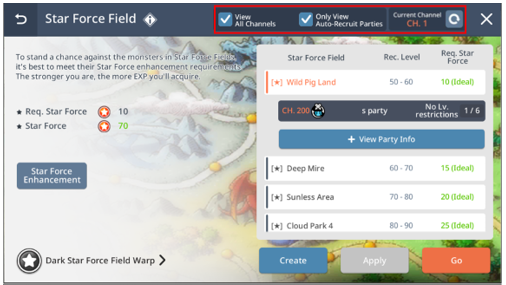
14. Finding a Party through Dungeons > Star Force or Arcane Power Field
- By toggling on/off in View All Channels, you can quickly find a party that was created either in the Current Channel or All Channels.
- You can also toggle between Auto-Recruit and All Parties.
15. Party Hunting EXP Increase Effect (Affected by Number of Party Members)
- You'll receive a Party EXP Increase Bonus based on the current number of party members.
| Number of Party Members | Party EXP Increase Bonus |
| 1 | 20% |
| 2 | 20% |
| 3 | 15% |
| 4 | 10% |
| 5 | 5% |
| 6 | 0% |
16. Item Drops from party Auto-Battle
- When hunting together with other Maplers, monsters defeated by others also drop items.
- The Item Drop Rate of your own Character also applies to monsters defeated by other Maplers.
More from this series
This Guides entry belongs to MapleStory M. Related pages below keep this series separate from other MapleStory games.
Source and verification
MPStorys shows the readable on-site body above. The source page remains attached only as a citation and update trail.
MapleStory M Official News