

Summary
“18 Styling” is an official guide from MapleStory M Official News on 2023-02-06. Its canonical Nexon thread and publication metadata are retained for source-backed verification.
Article body
▶ What is the Styling Menu?
Check, equip, and unequip your Damage Skins / Emotes / Chairs in this Menu.

▶ Accessing the Styling Menu
1) Access via [Menu] - [Styling]
2) Equipment > Appearance > Damage Skin/Mount/Chair Slot and Select Item.
3) Open the 'Emote' UI on the right side of the chat window and tap 'Edit' or on an empty slot
|
Damage Skin |
Customize your Damage Skins in this Menu.
Choose the perfect settings for your Damage Skin and try them on!
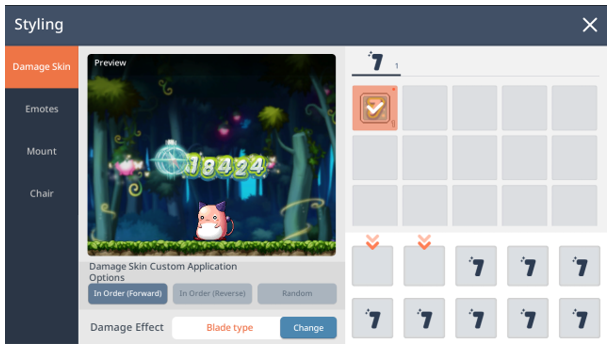
* Access the Damage Skin customization window via [Styling] - [Damage Skin].
* View the Damage Skins owned by the current character in the Damage Skin tab.
* Displays list of all Damage Skins owned, including those equipped and inside the Damage Skin Bag.
01. Custom Damage Skin
- A total of 10 Damage Skins can be placed in any order.
- There are 2 custom Damage Skin slots available by default.
- You can use the same Damage Skin in multiple slots.
- You can also use a temporary Damage Skin, but it will automatically be removed from the slot when the it expires.
- Tap [Delete] to remove the Damage Skin currently used as your custom Damage Skin.
- Removing a Damage Skin from the custom slot will not remove it from your inventory.
▶ Damage Skin Order Options
- In order (Forward): Assigned Damage Skins are displayed in order with each hit.
- In order (Reverse): Assigned Damage Skins are displayed in reverse order with each hit
- Random: Assigned Damage Skins are displayed randomly with each hit.
▶ Custom Damage Skin Slot Expansion Ticket
- A consumable item that expands the number of custom Damage Skin slots by one.
- When a Custom Damage Skin Slot Expansion Ticket is used, one extra Damage Skin slot is permanently added.
- You can use Custom Damage Skin Slot Expansion Tickets to expand the number of custom slots by up to 10.
- Opened slots cannot be reset and are applied on a character-by-character basis.
|
Emotes |
Customize your Emotes in this Menu.
Equip the Emotes you'll use via the Quick Menu!

* Access the Emote customization window via [Styling] - [Emote].
* View the Emotes owned by the current character in the Emote tab.
* Displays list of all emotes owned, including emotes that are currently equipped.
▶ Equipping and Unequipping Emotes
- You can register and use a total of 8 emotes.
- Tap the Emote from the list of owned Emotes and tap an empty slot in the Preview to register the desired Emote in your quick slot.
- Registered Emotes and their slot number can be viewed via 'Slot Preview' on the left of the preview screen.
- Registered Emotes can be used by tapping the Emote menu to the right of the chat window.
- Temporary Emotes are automatically removed from the slot when they expire.
▶ Tap the character to view Emotes and Action Skills ON/OFF
- Tapping the character with this option ON will display the available list of Emotes for quick use. Tapping the character while it is OFF will not display the list of Emotes.
▶ Display chat when using Emotes
- Entering the Emote keyword with this option ON will immediately bring up the Emote for quick use. Doing the same with this option OFF will mean the Emote won't be brought up for quick use.
|
Mount |
Check or equip owned mounts in this Menu.
Pick out your favorite mount!
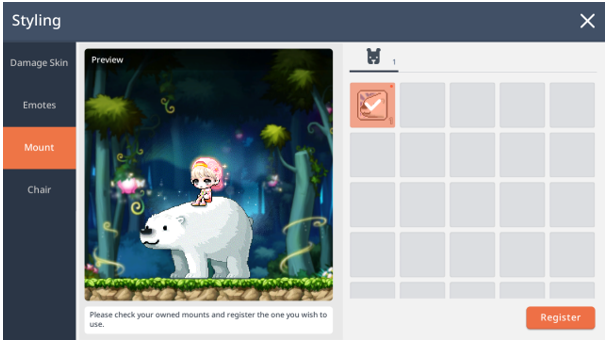
* Access the mount customization window via [Styling] - [Mount].
* View the mounts owned by the current character in the Mount tab.
* Displays list of all mounts owned, including mounts that are currently equipped.
▶ Equipping and Unequipping Mounts
- Select a mount from the list of owned mounts and tap [Register] at the bottom to equip it.
- An equipped mount can be removed by selecting it and tapping [Unequip] at the bottom.
- Temporary mounts are automatically removed when they expire.
- Mounts in the form of an Exchange Ticket are not shown on the list.
- During previews, mounts may be scaled to fit the preview screen. Therefore, a mount's actual size may appear different when equipped.
|
Chair |
Check or equip all owned chairs in this Menu.
There's nothing better than finding the perfect chair to sink into!
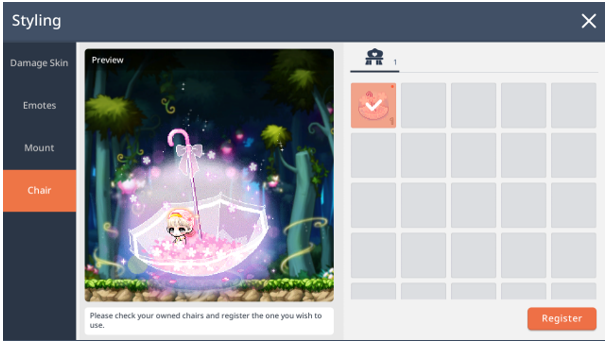
* Access the Chair customization window via [Styling] - [Chair].
* View the Chairs owned by the current character in the Chair tab.
* Displays list of all chairs currently owned, including chairs that are currently equipped.
▶ Equipping and Unequipping Chairs
- Select a chair from the list of owned chairs and tap [Register] at the bottom to equip it.
- An equipped chair can be removed by selecting it and tapping [Unequip] at the bottom.
- Temporary chairs are automatically removed when they expire.
- Chairs in the form of an Exchange Ticket are not shown on the list.
- During previews, chairs may be scaled to fit the preview screen. Therefore, a chair's actual size may appear different when equipped.
|
Cube Chair |
* Check the Cube Chairs from [Styling] > [Cube Chair], and stack them up to sit up in the sky!

▶ Cube Chair stacking and unstacking
* Select a Cube Chair of your choice to register in one of the slots at the bottom.
* Those already registered will be seen as ‘Stacking in progress’.
* If you wish to unregister a particular Cube Chair, simply click on the X button for that Cube Chair.
* With the Cube Chair Preview, the sizes and height will automatically change with the number of Cube Chairs stacked.
More from this series
This Guides entry belongs to MapleStory M. Related pages below keep this series separate from other MapleStory games.
Source and verification
MPStorys shows the readable on-site body above. The source page remains attached only as a citation and update trail.
MapleStory M Official News