

Summary
“24 Capture Mode” is an official guide from MapleStory M Official News on 2026-01-14. Its canonical Nexon thread and publication metadata are retained for source-backed verification.
Article body
▶ What is Capture Mode?
- This feature is for adventurers who want to capture various moments on their journey through Maple World..
▶ Capture Mode Info
- You can access this mode by going to [Menu] → [Capture Mode ] in game.
|
Basic Controls
|
Once in Capture Mode, you can adjust various settings.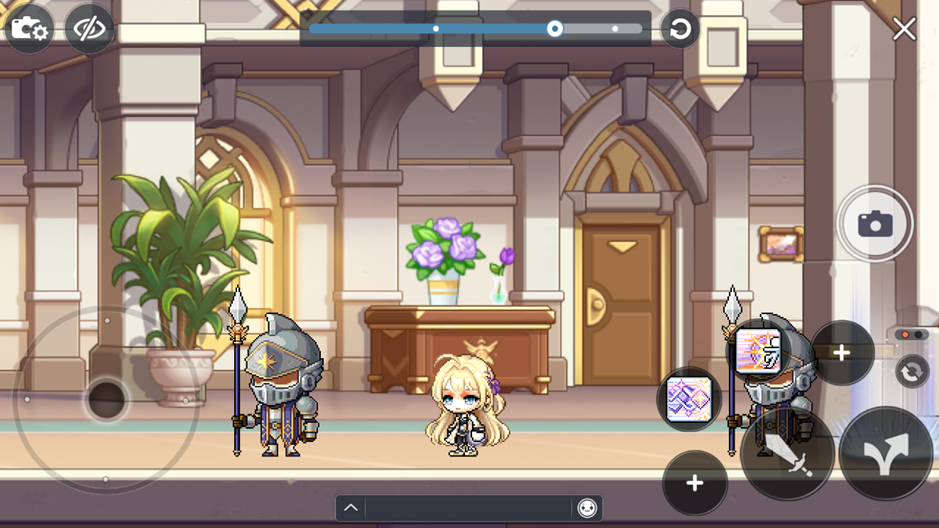
- Move Camera: Drag the screen to move the camera's position.
- Zoom: Drag the bar at the top of the screen to zoom in and out.
- Reset View: Tap the [Reset ]icon to reset the camera's position and zoom level.
- Hide UI: Tap the [Hide UI ] icon to hide all UI elements for a clean screenshot.
- Screenshots taken in Capture Mode are saved to your device's default photo folder (this may vary by OS).
- Depending on your OS, you may need to grant permission for the app to access your photos or folders to use this feature.
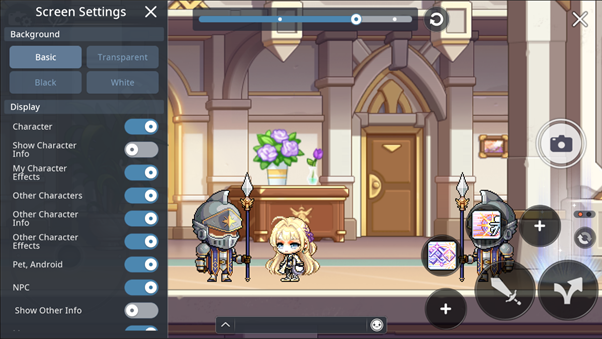
- Background Settings: You can change the image background to transparent (alpha channel), Black, or White.
- Display Settings: You can choose to show or hide the following elements from the screen settings:
| Option | Description |
| My Character | Hides your character. Toggling this also affects "My Character Info" and "My Character Effects." |
| My Character Info | Hides your character's Name, Guild, Medal, and Title. |
| My Character Effects | Hides your character's effects. |
| Other Characters | Shows or hides other players' characters. Toggling this also affects "Other Character Info" and "Other Character Effects." |
| Other Character Info | Hides other characters' Names, Guilds, Medals, and Titles. |
| Other Character Effect | Hides other characters' effects. |
| Pets & Androids | Hides pets and androids. This setting also applies to other characters' pets and androids. |
| NPC | Hides all NPCs. This will also affect the "Misc. Info" settings. |
| Misc. Info | Hides NPC names, speech bubbles, monster names, portal names, etc. |
| Monsters | Hides all monsters. |
▶ Auto-Mode
- In the [Settings] → [Device] tab, you can enable the Auto-Screenshot feature.
- This will automatically capture a screenshot during special in-game moments (like leveling up, defeating a boss, etc.).
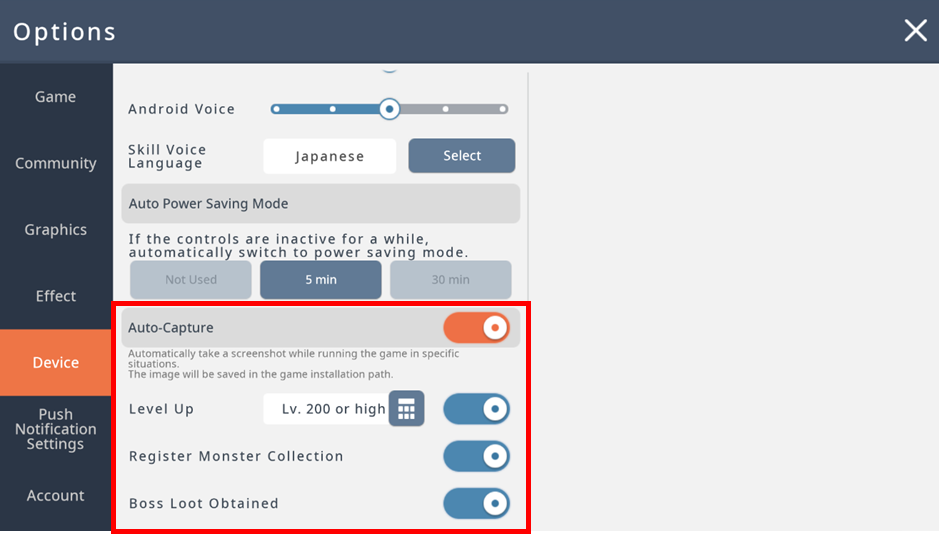
- Automatically saves a screenshot during designated in-game moments.
| Event | Description |
| Level Up | Saves a screenshot when you level up, starting from a designated level. |
| Monster Collection | Saves a screenshot when a new monster or region is added to your Monster Collection. |
| Boss Rewards | Saves a screenshot when the item reward window is displayed after defeating certain bosses (e.g., Expeditions, Root Abyss). |
- Unlike Capture Mode, Auto-Screenshot captures the screen exactly as it appears, including the UI.
- To use this feature, you may need to grant photo and folder access permissions, depending on your device's operating system.
More from this series
This Guides entry belongs to MapleStory M. Related pages below keep this series separate from other MapleStory games.
Source and verification
MPStorys shows the readable on-site body above. The source page remains attached only as a citation and update trail.
MapleStory M Official News