

摘要
“24 Capture Mode” is an official guide from MapleStory M Official News on 2026-01-14. Its canonical Nexon thread and publication metadata are retained for source-backed verification.
正文
▶ What is Capture Mode?
- This feature is for adventurers who want to capture various moments on their journey through Maple World..
▶ Capture Mode Info
- You can access this mode by going to [Menu] → [Capture Mode ] in game.
|
Basic Controls
|
Once in Capture Mode, you can adjust various settings.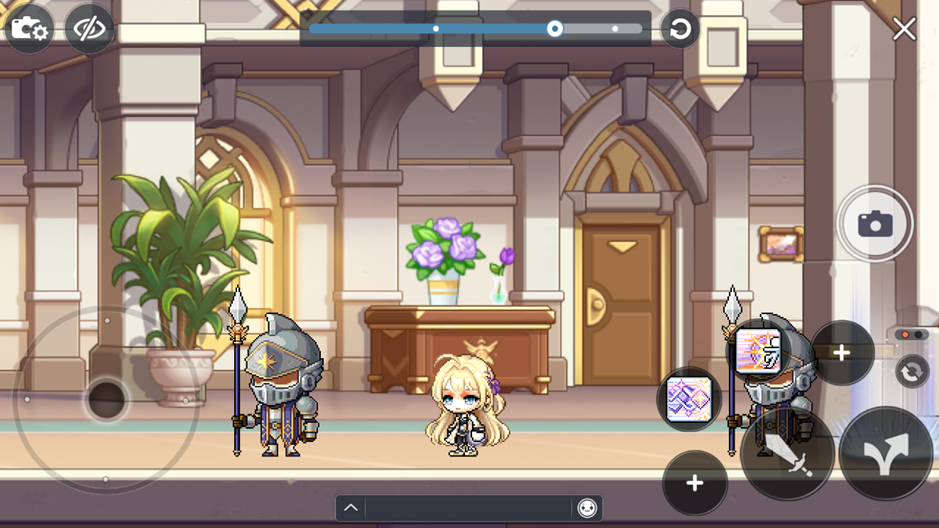
- Move Camera: Drag the screen to move the camera's position.
- Zoom: Drag the bar at the top of the screen to zoom in and out.
- Reset View: Tap the [Reset ]icon to reset the camera's position and zoom level.
- Hide UI: Tap the [Hide UI ] icon to hide all UI elements for a clean screenshot.
- Screenshots taken in Capture Mode are saved to your device's default photo folder (this may vary by OS).
- Depending on your OS, you may need to grant permission for the app to access your photos or folders to use this feature.
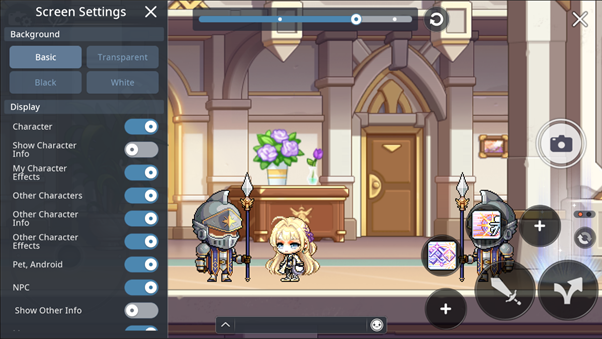
- Background Settings: You can change the image background to transparent (alpha channel), Black, or White.
- Display Settings: You can choose to show or hide the following elements from the screen settings:
| Option | Description |
| My Character | Hides your character. Toggling this also affects "My Character Info" and "My Character Effects." |
| My Character Info | Hides your character's Name, Guild, Medal, and Title. |
| My Character Effects | Hides your character's effects. |
| Other Characters | Shows or hides other players' characters. Toggling this also affects "Other Character Info" and "Other Character Effects." |
| Other Character Info | Hides other characters' Names, Guilds, Medals, and Titles. |
| Other Character Effect | Hides other characters' effects. |
| Pets & Androids | Hides pets and androids. This setting also applies to other characters' pets and androids. |
| NPC | Hides all NPCs. This will also affect the "Misc. Info" settings. |
| Misc. Info | Hides NPC names, speech bubbles, monster names, portal names, etc. |
| Monsters | Hides all monsters. |
▶ Auto-Mode
- In the [Settings] → [Device] tab, you can enable the Auto-Screenshot feature.
- This will automatically capture a screenshot during special in-game moments (like leveling up, defeating a boss, etc.).
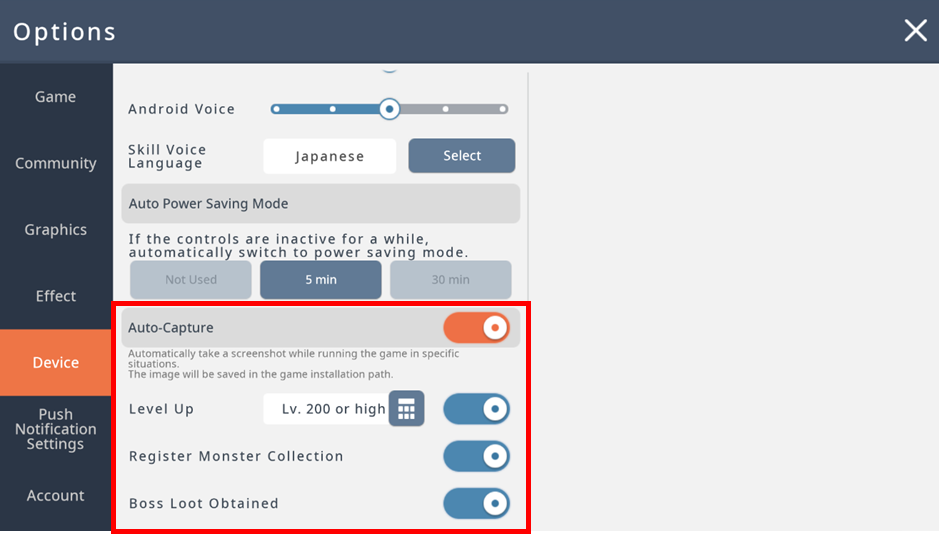
- Automatically saves a screenshot during designated in-game moments.
| Event | Description |
| Level Up | Saves a screenshot when you level up, starting from a designated level. |
| Monster Collection | Saves a screenshot when a new monster or region is added to your Monster Collection. |
| Boss Rewards | Saves a screenshot when the item reward window is displayed after defeating certain bosses (e.g., Expeditions, Root Abyss). |
- Unlike Capture Mode, Auto-Screenshot captures the screen exactly as it appears, including the UI.
- To use this feature, you may need to grant photo and folder access permissions, depending on your device's operating system.
此系列的更多內容
這筆攻略內容僅屬於 MapleStory M。下方相關頁面也按此系列獨立整理,不會與其他 MapleStory 作品混用。
來源與核驗
上方已在本站顯示可閱讀正文;來源頁面只作為引用與後續更新核驗。
MapleStory M Official News